Prospects to nurture. Upload a spreadsheet, type one in by hand, or watch them come in from your CRM.
📅 0 follow-ups due
Loading team…
0 selected
Name
Contact
Source
Service interest
Assigned
Status
Added
📋
No leads yet
Click + Add lead to type one in, or 📄 Upload CSV to bulk-import.
📅
Nothing scheduled.
Open any lead and schedule a follow-up from the 📅 Follow-ups card.
⚡
No sequences yet
Build your first nurture campaign. Start with 📚 templates for proven structures, or ✨ Generate one from a one-line description.
Reports
Pick a report to run it. Your Filter (rep/office/etc.) office selection also applies.to
AI Lead Responder
When ON, a brand-new inbound lead gets a text from the AI within about a minute, and the AI runs the whole conversation toward booking — fully replacing the drip sequence for that lead. The AI writes a context-aware opener from whatever the lead told us (or introduces itself and asks what they need). Off by default.
The AI writes the opener from the lead's info automatically. Set text here only as a fallback if you want a fixed opener. Use {first_name}.
The AI only quotes pricing/terms that appear here or in Price range / Promo below.
Emailed when the AI books/qualifies a lead. Defaults to your org notifications.
Ad Lead Sources
Funnel leads from Google Ads, Local Services Ads, and Facebook/Meta Lead Ads straight into your pipeline. Connect each platform to its URL below via Zapier or Make — no coding required.
Regenerating breaks any Zaps still pointed at the old URLs — you'll need to update them.
Each platform below is one Zap built in Zapier — the trigger connects to whichever account actually owns the ad leads (your Google Ads account, LSA profile, or Facebook Page), so whoever has login access to that ad account needs to be the one to build (or authorize) the Zap. If that's your client, just send them this section + their URL above. A single trigger→action Zap like these qualifies for Zapier's free plan.
📣 Google Ads (Lead Form Extensions)
In Zapier, click Create Zap
Trigger: app Google Ads, event New Lead — connect the Google Ads account that owns the lead form, then choose the account/campaign
Test the trigger to pull in a sample lead
Action: app Webhooks by Zapier, event POST
URL: paste the Google Ads URL above
Payload Type: json
Data: map the trigger's fields in — the lead's name into full_name (or first_name/last_name), phone into phone, email into email, and the campaign name into service_interest if you want that on the lead
No headers needed — the URL itself is the auth
Test the action, then turn the Zap on
📞 Local Services Ads (LSA)
Trigger: app Google Local Services Ads, event New Lead — connect the account tied to the LSA profile
Action: app Webhooks by Zapier, event POST to the LSA URL above
Data: map Consumer Name → full_name, Consumer Phone Number → phone, Consumer Email → email (if provided), Lead Category → service_interest, Lead ID → lead_id
Test and turn the Zap on
👍 Facebook / Meta Lead Ads
Trigger: app Facebook Lead Ads, event New Lead — connect the Facebook Page and pick the specific lead form
Action: app Webhooks by Zapier, event POST to the Facebook / Meta URL above
Data: map full_name, email, phone_number → phone, and any custom form questions into notes
Test and turn the Zap on
Field names above are Zapier's typical defaults for these triggers — always double-check the exact labels shown in your own Zap, since ad platforms occasionally rename fields. After turning a Zap on, submit a test lead on that platform and check the Leads tab here — it should show up within a few seconds.
📥 Lead distribution
How a new lead reaches your team when it arrives without an assignee. Existing assignments are never changed.
🔄 Sync leads from your CRM
When on, new and updated leads from your connected CRM (your CRM) flow into this pipeline automatically every ~30 minutes. Turn this off if your team manages leads elsewhere and you don't want them pulled in here.
📤 Push leads to FieldRoutes
If your team manages leads inside FieldRoutes instead of here, turn this on — every new lead this app creates (upsells, referrals, web forms, manual entries) gets pushed straight into FieldRoutes as an open lead, automatically.
Connect a FieldRoutes location in Settings → CRM Credentials first.
FieldRoutes requires a service type on every lead. Your salespeople now pick it per lead on the lead form — no account-wide default needed.
🎯 Pipeline Stages
These are the columns of your lead pipeline. Rename, recolor, reorder, or add custom stages to fit how your team sells.
Stages marked Won or Lost are treated as terminal in reports.
No stages yet — add one to get started.
Add stage
% chance a lead in this stage closes Won — used for the weighted Pipeline Value rollup.
Terminal state
Communication
All conversations between your team and customers. Read everything, jump in when needed.
💬
Pick a channel or start a conversation
Your channels appear on the left. Office channels are created automatically when you add a location, and you can DM anyone in your org.
Loading conversations…
💬
Select a conversation
Conversations between your employees and customers will appear here. Tap one to read or jump in.
Sending as Admin — the customer sees your message as-is, from the company number. It's logged as an office reply, so your team can tell it apart from the tech's.
Reply via
🕐 Communication hours · org-wide
Automated customer messages — reviews, reminders, campaigns, referrals, tips, and more — only go out within these hours and on the days you allow, in your business timezone (—). Tech-initiated messages like On My Way and anything you manually hit “send” on are always allowed.
🌙 After-hours reply
Send one automatic reply to customers who text your company number while your office is closed, so they know they were heard.
Their message still lands in your inbox and your office is notified as usual. Sent at most once per customer every 12 hours, and never over a reply your AI agent is already handling.
Your office hours · when a person is in the office to answer
Posted hours
Insert:
Off. Turn it on to set your office hours and the message. Customers who text after hours hear nothing back until someone replies.
📝 Push conversation summaries to your CRM
When a customer conversation (AI or CSR) goes quiet, AI writes a short summary of what happened and posts it to the CRM as a note on that customer — so your CRM stays the record of what was said. Runs automatically, no review step.
⚠ AI isn't configured on this environment yet — summaries won't generate until it is.
CRM Tasks → Team Chat
When a task is created in your CRM and assigned to someone, we'll message them the task in Team Chat — near real-time. Choose which task types send a message; leave all unchecked to send every type.
Loading task types…
💬 Messaging desk
Controls how inbound customer conversations are distributed among the people who answer them.
Auto-assign (round-robin)
Off (default): every conversation lands in a shared queue and anyone on the desk can claim it. On: each new conversation is auto-assigned round-robin to the least-busy desk member. Unclaimed items still show for everyone, and any conversation can be reassigned.
Who's on the messaging desk?
Checked teammates receive round-robin assignments and appear in the "Assign to…" list. If nobody is checked, all admins are treated as the desk.
📱 Company number & replies
Your shared org number — used for review requests, referral invites, tip prompts, and any other text not tied to a specific tech. Any reply a customer sends to this number lands in your admin messaging inbox as an "Office" conversation, so the front desk can respond.
Leave blank if you don't have one — replies still funnel via the platform-shared fallback number.
Need a number? Get one instantly
Search a local area code and choose a number — it's provisioned and ready to text right away.
Already have a number? Text-enable it
Keep your existing business number and add texting to it. Your calls stay with your current phone provider, untouched — we just add SMS (Twilio Hosted SMS). Usually ready in a few business days after you e-sign an authorization.
⚙️ Twilio routing Driven only
Which Twilio account this org sends through. Dedicated (A2P) uses the provisioned number above. Shared 855 reverts to the platform fallback number — outbound only, no per-org replies.
🏢 Per-branch numbers
Give an office/branch its own customer-facing number for inbound & outbound. Branches without one use the company number above. Branch numbers join this org's approved A2P campaign automatically.
Loading…
📥 Accept replies to this number
When OFF, anyone who texts your company number gets an automatic reply telling them to contact you directly — nothing lands in the inbox. Turn this ON only once you have someone monitoring replies.
📤 Tech-controlled send
When ON, the review-request SMS is held on appointment completion until the tech has captured everything you require below. The moment the last required item lands, the customer's visit-page link auto-sends — no button to tap. If the tech doesn't finish in time, the fallback timer fires the standard review link so the customer still gets asked.
Tech must capture
Fallback
If the tech hasn't completed withinhours
…we'll send the standard review link automatically. The visit-page link won't be customer-facing for that visit — the tech can still add photos/notes for the record, but the customer will only see the simple review form.
🤖 AI Agent
When ON, Driven AI tries to answer customer replies to your company number using the business context below. If it's confident, it replies directly (marked 🤖 AI in the inbox). If not — pricing, scheduling, complaints, anything it's unsure about — it flags the thread for a human and sends you a notification.
The more specific, the better. Include FAQs, what you do/don't service, hours, and explicit "always defer to a human" cases.
💬 Auto-reply when AI is off
If a customer replies to your company number and the AI agent is turned off, send this one message automatically (then notify your office). Sent at most once per customer every 12 hours, so it never spams a back-and-forth.
Conversational agent — Policy & Knowledge Base
🤖
AI Agent isn't activated on your account
The conversational AI agent handles inbound customer texts — looking up appointments, proposing reschedules, answering questions, and capturing new leads. Every CRM write goes through your approval queue. Reach out to Driven to enable it for your account.
Inbound customer texts route to the Driven AI agent. It can lookup appointments, propose reschedules/cancels, read balances, answer FAQ questions, and create leads. Every CRM write goes through your 🤖 AI Actions queue for one-click approval. Policy is your rule-set; Knowledge Base is what the agent uses to answer factual questions.
Plain text. The agent uses this verbatim as its rule-set. Override our defaults to match your office's policies — e.g. extend the reschedule window, restrict certain service types, change handoff rules.
Markdown supported. The agent searches this whenever a customer asks "how often", "do you do X", "what are your hours", etc. If a question doesn't have a clear answer here, the agent will escalate to a human instead of guessing.
💬 Let techs text customers
Field techs can text customers on their route from your company number, right from the Driven app. It's the tech's thread during the day; if a reply sits unanswered, the office gets alerted to cover it; overnight the thread moves to your office inbox. Every message shows who sent it. Opt-outs and texting hours are always enforced.
🚐 On My Way SMS Template
Sent when a tech taps the 🚐 button on their route. Variables: {first_name}, {tech_first_name}, {tech_full_name}, {company_name}, {eta_minutes}. Leave blank to use the default.
📅 Appointment Reminders
Sends reminder texts before every scheduled appointment, pulled live from your CRM, at the lead times you choose below. Goes out from your company number at your chosen send time (local to your timezone). Idempotent — each appointment gets exactly one reminder per lead time.
Check each lead time to send a reminder at — e.g. "3 days" and "1 day" sends two reminders. The message auto-adjusts ("in 3 days" vs "tomorrow").
Local to your business timezone.
Only used when Messaging is OFF — customers see "call this number" in the reminder text.
Variables: {first_name}{company_name}{when}{time_window}{tech_first_name}{service_type}{callback_number}. {when} auto-fills "today" / "tomorrow" / "in 3 days". Leave blank to use the default.
Recent reminders
💬 Team chat history import
Moving to Driven from another chat tool? Import your team's existing history so nothing is lost. Channels come in as read-only Archived · Slack channels; teammates are matched by email. Messages & threads import (files aren't included yet), and re-running is safe.
Campaigns
Outbound asks to your existing customers — upsell, winback, and referral.
Loading…
Referral settings
Configure how referrals work. To create or manage individual referral campaigns, use + New Campaign on the Campaigns page.
🍽️ Reward the referred customer · review-triggered program
On top of the referrer's reward, pay the new customer a recurring cash reward ("get lunch on me, courtesy of your realtor") to their Venmo/PayPal/gift card. Each payment only sends while they're still an active customer — cancel and it stops.
This applies to your main review-triggered program only. Custom lists and time-based programs each have their own referred-customer reward toggle in their editor.
Placeholders: {amount}{company_name}{referrer_name}{link}. Leave blank for the default.
How the person who refers gets paid when a referral converts. Tremendous skips the Stripe onboarding for a faster claim.
Program · Review-triggered
After a high-rated review
When a customer leaves a high-rated review, we'll text them a unique share link so they can refer friends to your business.
Loading…
"Immediately" fires the SMS the moment the customer submits their review.
Don't ask the same customer again fordays
Counts the last referral-ask SMS sent to this customer across every program. Set to 0 to disable the cooldown. Recommended: at least the longest gap between your active programs (e.g. 30+ days).
$
What the original customer earns when their referral signs up. Funded from your Driven Balance.
Shown on the landing page. You'll honor this in your CRM when they sign up.
Placeholders: {first_name} (the referrer) {friend_first_name}{company_name}{referrer_reward}
Program · Postcard
📮 Postcards
Direct-mail postcards to referred neighbors. Billed $0.80/piece on your monthly invoice.
Loading…
$
Hard ceiling on postcard spend per calendar month. 0 = unlimited.
days
If two neighbors refer the same address inside this window, only the first one's postcard goes out.
$
$
Used on the Warm Intro postcard. We try the referrer's last service tech's photo first; if none, this stock image is used. If both are blank, we render a styled illustration instead.
Choose your postcard design
Pick one of the three built-in designs below and edit the copy to match your voice. The preview updates as you type. Pick which one to use with "Use as default".
📊 Activity
Incoming leads, balance, asks sent, and per-employee performance from every program — review-triggered, time-based, and postcard.
⏸️ Pending billing
These conversions are on hold — your Driven balance was short of the $50 conversion fee (and any reward). Top up the balance, then retry.
Lead
Referrer
Reason
Captured
📥 New leads to follow up
Friends who clicked a referrer's link and submitted their info
Lead
Phone / Email
Service Interest
Source
Received
Status
🌱
No new leads yet
When your happy customers refer a friend, that friend's contact info will land here.
🏆 Referrals by employee (last 90 days)
Attribution: the tech who serviced the referring customer, or the tech you picked on a manual referral.
Employee
Sent
Converted
Conversion rate
Last referral
📈
No referrals yet
Once your techs start generating referrals, you'll see a ranked leaderboard here.
📤 Referral asks sent
Every customer we've messaged asking for a referral
Customer
Source Rating
Sent
Opened
Clicks
Leads
Status
📤
No referral asks yet
Once you enable the program and a customer leaves a high-rated review, we'll automatically ask them to refer a friend.
New Campaign
Who do we target?
Services the customer cancelled — pulled from your cancellation history in the data warehouse. Match ANY. Leave empty for "cancelled anything".
Cancelled betweenanddays ago
Cancelled betweenand
Rolling keeps catching newly-lapsed customers over time; specific dates target one fixed cohort.
Narrow to specific subscription statuses (e.g. Cancel-In). From your CRM's own status values. Match ANY. Leave empty for all.
Only customers who cancelled for a matching reason (e.g. moving). Match ANY. Leave empty for all reasons.
Active subscriptions the customer has. Match ANY of the ones you add. Empty = no "has" filter.
…and it was sold within the lastdays (optional)
Leave blank for "has it at all". Set it for "recently sold" — e.g. added this subscription in the last 90 days.
Excludes anyone who has any of these — this is your "but not Y". Common: sell mosquito to customers who have general pest but not mosquito.
Only used for accounts not yet connected to the data warehouse.
For a winback campaign, pick whichever status your CRM uses for cancelled customers (e.g. "Cancel Out").
When they respond — what does the AI need to close?
The AI can't book or sign anything itself — a win means the customer hit this bar and the lead is handed to your team.
When a customer hits the win, this contact gets an email with the lead and which campaign it closed from.
Pace & window
Send hours & days are set org-wide under Settings → Communication hours.
Reattempts (follow-ups)
A thread counts as cold once the last message was ours and the wait time has passed with no reply. Anyone who booked or clearly declined is left alone. The message threads into the same conversation, so the AI keeps handling replies.
🧪 Test this campaign
Sends the real opener (with this campaign's details) to the contact below and threads replies to the AI, so you can try the whole flow. Skips audience + Do-Not-Contact; nothing counts toward the campaign.
Campaign analytics
Loading…
Conversions
Loading…
↩ Reply to review
✨ We drafted a reply for you, edit it however you like
What was off about it? We'll use this to write better ones.
Reviews
Pay cash bonuses to employees when they earn 5-star reviews
Recent Accruals
Once you set up Stripe and activate a bonus program, earned bonuses will show up here.
Active Programs
No active programs yet. Create one on the Programs tab.
Rules that turn qualifying reviews into bonuses
Name
Source
Min Rating
Amount
Auto-pay
Status
🎯
No bonus programs yet
Create your first program to start rewarding technicians when they earn 5-star reviews.
Pending approvals and payout history
Accrued
Employee
Trigger
Amount
Status
💸
No bonuses yet
Once a qualifying review lands and matches an eligible employee, it'll appear here for approval.
Employees need to link their bank before they can receive bonuses
Employee
Invite Contact
Stripe Status
Onboarded
Payouts Enabled
👥
No employees yet
Sync employees from your CRM first, then invite them to set up their Stripe payout account.
Settings
Manage your organization's preferences, integrations, and team
Team
Email
Name
Role
Linked Employee
Last Login
Added
👥
Just you for now
Invite admins or employees to join this organization.
Settings
Manage your organization's preferences, integrations, and team
API Keys
Public API Documentation
External systems can pull employee and review data via our public API. Authenticate with
Authorization: Bearer rg_yourkey
or X-API-Key: rg_yourkey.
GET
/api/v1/employees
List all employees for your organization
GET
/api/v1/employees/:id
Get one employee + summary stats (total reviews, avg rating, star breakdown)
GET
/api/v1/employees/:id/reviews
All reviews for an employee (SMS-collected + matched Google reviews)
Query: ?since=ISO&until=ISO&limit=100&offset=0
GET
/api/v1/reviews
All reviews for your org, combined internal + Google
Per-tech "Appts with Proof" metric — count of completed visits where the tech captured at least one photo or video via Add Proof
Query: ?days=30 (max 365)&employee_id=
Name
Key
Status
Last Used
Created
Actions
🔑
No API keys yet
Create one to let another system pull your review data.
Settings
Connect a domain so customer emails route into your inbox.
📬 Customer email inbox
Pick a subdomain (like mail.yourcompany.com), paste 4 DNS records into your domain host, and customer emails sent to support@mail.yourcompany.com will land in your inbox alongside texts. Replies come from the same address so customers see your brand.
🧵 Unified inbox
Merge each customer's texts and emails into a single office conversation. Turning this on
also backfills existing split threads for that customer into one. Reversible — nothing is deleted.
🤖 Let the AI answer emails
Same behavior as SMS auto-reply, applied to inbound email. Off by default. Requires the AI agent to be enabled.
Appended to every human email reply. Placeholders: {agent_name}, {agent_email}, {company_name}. Empty lines are dropped automatically.
Used when the AI sends the reply — no individual CSR to name.
Default office
Where emails go when the sender matches a customer who hasn't been assigned to a branch.
Loading…
Sender Identity
The display name customers see on your emails. The address itself comes from the verified domain above — e.g. support@mail.yourcompany.com — so emails read as Your Company <support@mail.yourcompany.com>.
If blank, replies come back to your sending address and thread into your inbox. Only set this if you want replies to go somewhere else.
📡 Channel defaults
Choose how each automated message goes out. Both sends the SMS and the email every time. Changes save automatically. Individual customers can override these on their profile.
Loading…
Mailing address
Shown in the footer of every marketing email (required by anti-spam law).
Add an email domain
Use a subdomain (e.g. mail.yourcompany.com) — keeps your existing email untouched.
@<your subdomain>
Customers email this address and your replies come from it.
DNS records
Or add these records into your DNS host by hand. DNS can take up to 30 minutes to propagate. Once they're live, click Verify.
Settings
Manage your organization's preferences, integrations, and team
Notifications
Choose which events send you an email. The bell icon in the top-right always shows in-app updates regardless of these settings.
Only applies when "A new review is left" is selected above — useful if you only want a heads-up on reviews that need a response.
Comma-separated emails. Leave blank to send to all admins on the account.
Get a pop-up in the corner of your screen for new reviews, leads, referrals, and messages — even when the portal tab is closed. Enable it on each computer where you want alerts.
CRM Credentials
Enter your CRM API credentials once — every location in your organization uses them.
Not configured
⚡ Set up real-time triggers in FieldRoutes
Without this, we'll fall back to polling FieldRoutes every 30 minutes. With it, review requests fire within seconds of an appointment being marked complete. This is one Trigger Rule per FR account — not per location.
In FieldRoutes:
Go to Admin → Office Settings → Trigger Rules
Click + Trigger
Trigger Type: Appointment Status
Under Global — change to Available to All Offices
Status Changed to: Completed
When to Trigger: Trigger on Save
Click the + Action button to add the webhook action
Click "Show Placeholders" in the FR rule editor to verify these variable names match your version. Only {{appointmentID}} is required.
Save the Trigger Rule
After saving, complete a test appointment and watch the Requests tab — a new request should appear within ~10 seconds.
🔑 Per-office API keys (optional)
FieldRoutes issues a separate API key per office. The credentials above are your default. If an office has its own key, add it to that location here so we can read that office's customers and send its review requests. Locations without their own key use the default above.
Reviews
How review requests get sent, when, and to whom
🔗 Google Business Profile
Connect your Google account to read and reply to Google reviews right here. Later you can let AI draft or auto-post replies. Sign in with the Google account that manages your Business Profile.
Loading…
🤖 AI auto-reply
Automatically draft and post owner replies to new Google reviews at or above the rating you pick. Lower-rated reviews are always left for a human.
Auto-reply to
Automatic Review Requests
When enabled, SMS review requests are automatically sent after appointments are completed. Manual sends always work regardless.
Request Pattern
Build a sequence. Each customer rotates through it: first request gets the 1st item, second request gets the 2nd, etc. Add the same platform multiple times to weight it (e.g. Google, Google, NPS).
Click buttons below to build your sequence…
Add to sequence
🎯 Smart NPS settings
Customer rates 0–10. Promoters who haven't already left a public review are routed to Google/Yelp/Facebook. Detractors get a private feedback form (with optional email alert to the owner). Throttle and skip-if-already-reviewed don't apply at send time — Smart NPS always asks, then decides what to do based on the score.
Customers scoring this or higher get redirected to leave a public review.
When a customer scores 0–6, this address gets an email with the score, the customer's comment, and their contact info — so you can recover the relationship before it becomes a 1-star public review.
Uses your standard reminder cadence. Detractors and passives are never reminded — they got the only outreach intended for them.
Sent to a promoter who rated 9+ but hasn't left the Google review yet (when the toggle above is On). Vars: {first_name}, {company_name}, {tech_name}, {link}. Leave blank to use the built-in Google-nudge default.
When on, promoters see a one-click prompt before going to Google/Yelp. Use it to ask for a tech-name mention, pitch a referral bonus, etc.
When and how often customers receive review requests, and what rating threshold sends them to a public review site.
🎯 Smart NPS routes promoters / passives / detractors automatically based on their NPS score, so the Rating Threshold and Throttle settings don't apply. Driven enforces a minimum 24-hour gap between any two messages to the same customer.
When on, the review link opens your Google review page directly — no rating step. Faster for the customer, but the Rating Threshold above no longer applies (every customer, including unhappy ones, goes straight to Google). Clicks are still tracked. Does not affect NPS / Smart NPS surveys.
🕐 Send hours & days are now set org-wide under Settings → Communication hours and apply to every automated message, not just reviews.
📍 Review Location Routing
Where should each incoming review be attributed? By default Driven uses each technician's location (CRM branch or per-tech override). Round-robin mode rotates through ALL of your locations on a schedule, so every Google profile gets equal review volume regardless of which tech did the work.
Currently routing to
—
Next rotation: —
Channels & Cadence
Pick which channel(s) each step goes out on. The initial send fires right after an appointment; reminders fire on the schedule below.
Skip If Already Reviewed
Don't ask customers for a public review if they've already left one. Internal-only flows (NPS, Smart NPS) ignore this gate.
Only skip if a matching review exists within this many months. 'Forever' = any past review at all.
Attribute Updated Reviews to Last Tech
When a customer edits an existing review (changes their rating or text), credit it to the technician who most recently serviced that customer — not the original tech, and not any name mentioned in the review. If we can't identify the customer or a recent service tech, the existing attribution is left unchanged.
Reminders
Branded review link
Put your company name in the review link so it reads as yours (helps texts land instead of getting filtered). The code after it still tracks each customer.
Only send review requests for certain customer types or service categories. Useful when commercial accounts shouldn't get review asks, or when one-off services (like termite inspections) shouldn't trigger a review.
Loading…
Pulled from your CRM data over the last 90 days. Check the values you want to filter on.
Loading…
Matched as substrings — checking "Termite" filters anything containing that word. Or type a custom keyword:
Email Templates
Used whenever a step above has Email checked. Plain text with line breaks — URLs become clickable automatically.
Have Driven AI draft owner-style responses to your Google reviews. You always review the draft before it sends — nothing posts without your approval.
Appears at the end of every response.
Custom rules layered on top of our defaults. Keep it short and specific.
⚠ Anthropic API key not configured on the platform. Contact support to enable AI drafts.
Brand & Social Posts
Beta
Generate branded review images for Facebook, Instagram, and LinkedIn directly from any 4★+ review. Configure your brand once — every image uses these settings.
No logo
PNG with transparent background works best. We'll resize to 512px max.
Reviews
Tipping — let happy customers thank your techs
Customer Tipping
After a qualifying review, customers can tip your technician directly. Tips flow through Stripe Connect to each tech's linked bank.
When tipping is on and the rating clears the threshold below, customers get a follow-up tip prompt.
How long to wait after a qualifying review before sending the tip invitation.
Caps a single tip at this amount.
Which review types prompt a tip?
By default every review type is eligible (gated by the minimum rating above). Toggle a platform OFF to never send tip requests after that platform's reviews — even if they hit the rating threshold. NPS uses its own promoter-score threshold.
Promoter score ≥
Amounts & Fees
Only shown if suggestions are enabled above.
Tip Invitation
Customer receives the invitation on every channel you check. At least one should be on, or nothing will go out.
Performance and ROI across reviews, referrals, postcards, and the lead pipeline.
to
Time
Clock in and out, review timesheets, and export approved hours to payroll.
📞 Call Pop
Inbound sales-call screen pops from your VoIP system (NICE CXone).
🧪 Test it now
Fire a simulated inbound call to yourself — the pop appears, you disposition it, and (on New Lead) a lead is created. No phone system needed.
Webhook URL
Point your CXone Studio OnAnswer REST action here. It carries a per-org secret — rotate it if it leaks.
Agent → rep mapping
Which Driven user answers on each extension. A call answered on an extension pops to that user.
Recent calls
Loading…
Settings
Manage your organization's preferences, integrations, and team
Loading…
Add Funds to Driven Balance
Enter the amount you want available in your balance. Processing fees are added on top of that. Pay by card (instant) or ACH (~4 business days).
$
This exact amount lands in your balance.
Enter an amount to see fees
⚡ Automatic top-up
Keep your Driven Balance funded automatically. When the available balance drops below a threshold, we'll charge your saved card and add funds within minutes — no interruption to bonus payouts or referral conversions.
$
Minimum $10. We check every 15 minutes.
$
Minimum $100. Processing fees are added on top — the exact amount lands in your balance.
Cooldown: A 6-hour cooldown runs after each attempt. If 3 attempts fail (e.g. expired card), auto top-up disables itself so we don't keep retrying — you'll get notified and can re-enable after updating your card.
Pay each new customer a recurring cash reward ("lunch on me, courtesy of your realtor") via Venmo/PayPal/gift card — only while they stay active. Applies to this list only.
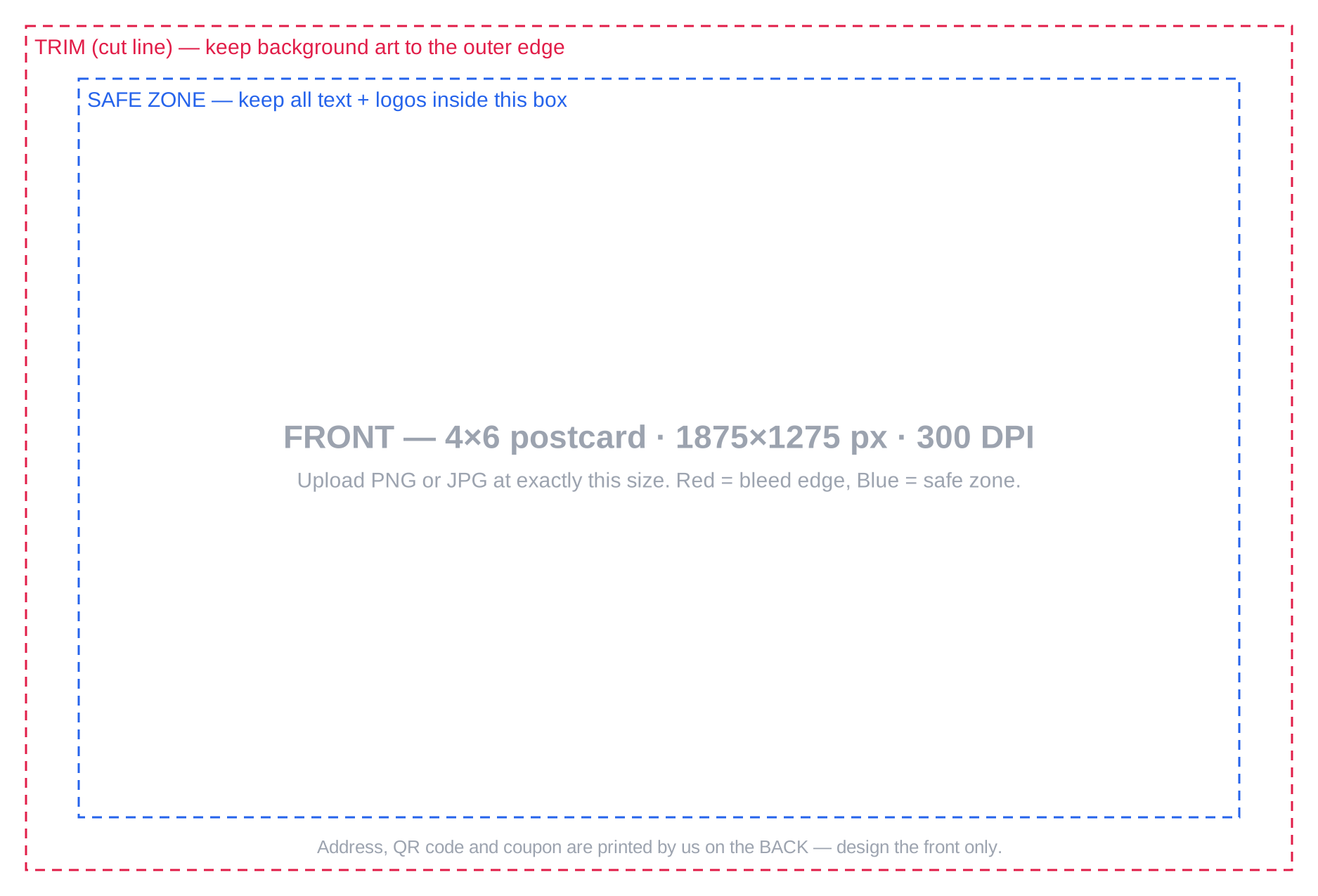
PNG or JPG at 1875×1275 px, 300 DPI (4×6 with bleed). Design the front only — we print the address, QR code and coupon on the back. Uploading a design overrides the template above.
Referrals submitted via the customer portal that have a complete address. Suppressed entries (existing customers, recently mailed) will be filtered automatically.
One recipient per row. Columns: Name, Street, City, State, ZIP. (Header row optional.)
Max 50 recipients per batch. Paste rows or upload a CSV with columns Name, Street, City, State, ZIP.
0
Will be mailed
0
Suppressed
$0
Total cost
Why were addresses suppressed?
✅
Sent!
💰 Send Manual Bonus
Ad-hoc cash bonus — pick employees, set the amount, and pay it all out at once. Each employee needs Stripe Connect set up first.
$
0 selectedTotal: $0.00
New Bonus Program
Awards a bonus to the tech credited on a review.
Paid to the technician after approval.
Optional. Paid when a customer edits an existing review. Leave blank to pay the same as a new review; 0 to pay nothing for edits.
Pays on internal survey NPS responses at or above this 0–10 score.
Guardrails
Optional caps to prevent runaway bonuses.
Same customer can't trigger this bonus more than once within the window. Blank = no cap.
Blank = no cap.
Flagged/manual matches can still be paid by admin override.
We detect the reviewer's photo when we sync the review from Google. Best paired with a Google source.
Immediate fires within ~15 min of the matching review. Daily/weekly/monthly batch all eligible accruals from the closing period into one transfer per employee (one fee per batch instead of one per review). Local time uses your locations' timezone.
Add Location
Review Destinations
Reviews are off for this office — it won't trigger or collect Google reviews. CRM sync, campaigns, and messaging still work. Use this for an office you run for communications but don't want reviews from.
Where customers can leave reviews for this location. Enter any combination — we'll send them to the right one based on your Request Pattern.
CRM API credentials are managed at the org level — set them once in Settings → CRM Credentials and every location uses them.
Every review request SMS is sent from our platform number. Cannot be changed per org.
💡 After saving, click "Register Webhook" on the location row to connect Briostack's real-time notifications. Otherwise we'll check every 10 minutes via polling.
Pick who this applies to, then either set them all to one review location, or revert them to their original CRM-assigned location.
Inactive techs are typically dispatchers / former techs.
Reviews tagged to any of these techs' appointments will route to this location going forward.
Revert to CRM-assigned location
Clears the manual override for the techs selected above, so their reviews route back to the office they're assigned to in your CRM — no location pick needed.
Performance
Loading…
Loading…
Service quality
📸 Proof of service
For each tech, the percentage of completed appointments where they sent an image (MMS) to the customer. Every serviced appointment counts — including ones where a review request was throttled or skipped — as long as the customer has a phone on file. Photo evidence within ±4–24 hours of the visit counts.
Loading…
Messaging
📊 Deliverability dashboard
Loading…
Payouts
💳 Bulk Stripe invite
Send a one-tap Stripe Connect onboarding link to multiple technicians at once.
Each tech gets an SMS (or email fallback) with a link to link their bank account
so they can receive bonus payouts. Techs already onboarded are skipped automatically.
Eligible:… active technicians without a completed Stripe Connect account.
Select technicians
0 selected
Messaging
Text-enable your existing number
We add SMS to a number you already own. Your calls stay with your current provider, untouched. The contact below gets an email to e-sign an authorization; the number is usually text-ready in a few business days. It must not already be text-enabled somewhere else (e.g. Podium) — disable SMS there first.
Messaging
Bulk provision Twilio numbers
Assign Twilio numbers to multiple techs at once. Each number costs ~$1.15/month plus per-message fees. Provisioning ~10 numbers takes about a minute.
Carriers downrank traffic where all numbers share one area code. For nationwide rollouts, vary by tech location below.
Federal law requires every business sending automated text messages to register with the cellular industry. Driven submits this on your behalf — fill in the info below and we'll handle the registration with The Campaign Registry. Approval typically takes 1–2 weeks.
Legal entity
Pest control fits best under "Real Estate / Construction" or "Professional Services".
Business address
Authorized representative
This person is the legal point of contact for the SMS program. They must be an officer, owner, or authorized employee of the business.
Twilio account ownership
Where should this registration live? Most customers leave this as Driven — we handle billing + technical setup and bill you through your normal Driven invoice. If you already have a Twilio account you'd prefer to use, pick "Our own Twilio account" and we'll guide you through transferring.
📇 Submit Campaign Registration
Registers this business's own 10DLC brand + campaign with Twilio. The identity must match the business's IRS/Secretary-of-State records exactly, or the brand is rejected. This incurs one-time fees (~$4 brand + ~$15 campaign).
Loading…
Authorized representative
Enroll 0 leads in a sequence
Each lead will start at step 1. Leads already in this sequence will be skipped (we don't double-enroll).
Enroll in a sequence
Pick a sequence to start. The first message will fire based on its delay setting.
Sequence
New sequence
Steps
✨ Generate a sequence
Describe what you want the sequence to do — Driven AI drafts the full structure (steps, timing, copy). You'll get a chance to edit before saving.
💡 Tip: tell Driven AI the audience (cold lead, existing customer), the service, the urgency, and how many steps you want. The clearer your prompt, the better the draft.
📚 Sequence templates
Pre-built sequences proven for pest control. Pick one to clone into your org — you'll be able to edit everything before saving.
Lead
Loading…
Contact
Sales status
Sequences
📅 Follow-ups
Activity
Add a lead
One-off entry. For multiple, use Upload CSV.
📄 Upload leads from CSV
Drop a spreadsheet, map the columns, confirm consent. We'll dedup against existing leads and flag any phone numbers on your DNC list.
Columns you can include:
First Name, Last Name, Phone, Email, Address, Service Interest, Notes, Stage, Source, Sales Rep (Assigned to).
Only Phone or Email is required. Any column you don't have, just leave out — you map them in the next step. Stage matches your pipeline stages by name; Sales Rep matches an employee by email or name.
First row should be column headers. Max ~2 MB.
Columns: First Name, Last Name, Phone, Email, Address, Service Interest, Notes, Stage, Source, Sales Rep (Assigned to).
·
Match your columns
📜 TCPA consent attestation
Federal law requires express written consent before SMS marketing to a phone number. By submitting this list you attest the contacts consented to receive messages from you.
Start a new conversation
Start typing a customer's name to find them. The message sends from your company number.
Or enter manually
🚐 Today's route
See scheduled appointments for a tech and message customers ahead of their stop.
📱 Customer messaging
Assign this tech a dedicated phone number that customers can text and call. The number stays with them. Click-to-call rings their personal cell first, then bridges to the customer.
Loading…
Personal QR code
Print this on a yard sign, truck decal, or business card. When customers scan it, they leave a review attributed to this tech.
Generating…
Regenerating breaks any previously-distributed copies of this QR code (printed signs, decals, etc.). Use it if a sign is stolen or the tech leaves.
Send Review Request
Manually send an SMS review request. Bypasses auto-send and business-hours gates.
US numbers — we'll add +1 automatically. International? Include the country code.
We'll save this person as a customer in your account so future reviews and requests link back to them.
✋ This review request will be credited to you.
"Auto" honors the request sequence on Settings → Setup. Pick a specific type to force this one send (e.g., Smart NPS so the interstitial fires).
Send Tip Request
Push a one-tap tip link to a customer for a specific tech. Lands within ~2 minutes via the customer's preferred channel (SMS preferred, email fallback). Tipping must be enabled for the customer's location + the tech must have Stripe payouts active.
Only techs with Stripe Connect set up + payouts enabled are listed.
Do Not Contact List
Phone numbers on this list will never receive SMS from your organization. Entries are added automatically when recipients reply STOP to one of our messages, when Twilio reports error 21610, or manually by your team.
Phone
Email
Scope
Source
Reason
Added By
Added
🚫
No one on the Do Not Contact list
Phone numbers and email addresses added here will never receive outbound contact from your org.
Add to Do Not Contact
Phone numbers are normalized to E.164. Email addresses lower-cased. Fill in either or both — both fields create independent opt-out rows so unsubscribing from one channel doesn't auto-block the other.
Upload Do Not Contact List
One contact per line — phone numbers OR email addresses, mixed freely. Entries with @ are treated as emails, everything else as phone (normalized to E.164). Duplicates skipped automatically.
Create API Key
Generate a key for an external system to pull your employee + review data.
Invite Teammate
We'll email them a one-time link to set their own password — no temp passwords to share.
Required — leads are filtered by this employee's attribution.
Generate Social Post
Generating preview…
Reply to Review
0 chars
Review & Response
Customer Review
Owner Response
🔒
This feature is paid-only
Auto-send and manual review requests are unlocked the moment your subscription is active.
You're on the 7-day free trial
Your trial automatically ends — auto-send unlocks then.
Want to flip it on right now? Activate your subscription and unlock everything.
Stripe will charge your card on file for the prorated subscription. You can cancel anytime from the Billing tab.
Reply on Google
💬 Reply to reviews inside of Driven — coming soon!
Until then, we'll send you over to Google Business Profile in one click.
We'll open your Google Business Profile in a new tab. Find this review in your list and click Reply — you'll need to be signed in as the business owner. Use the copy buttons below to find it fast (Ctrl+F on Google's page).
The review you're answering
—
⚠ This location doesn't have a Google Place ID set yet. Add it on the Locations tab so the link can open directly to your reviews page.
Update name, role, or linked employee. Email isn't editable here — delete + re-invite if you need to change it.
Scope this admin's Leads view to one office. Leave as "all offices" for org-wide managers/owners.
Password
Send the user an email with a one-time link to set a new password — or generate a manual link to share via Slack/SMS if email delivery is failing. They'll be signed in automatically when they click it. Each option burns any existing link so only the latest one works.
CRM Configuration
Credentials are encrypted with AES-256-GCM before storage. Existing values are shown masked.
Generate Social Post